The ways in which IT is used
Word processing and desktop publishing
Word processing applications allow users to type and edit text.
Desktop publishing (DTP) applications allow users to create page layouts using text and pictures.
Word processing
All word processing allow us to:
Cut/Copy & Paste- Cut and copy work in a similar way. Highlighting a piece of text, right-clicking and selecting copy/cut will store the text in memory. The difference is copy leaves the highlighted text behind where as cut removes it. To insert the copied/cut text into a different area of the document, a different document, or an entirely different application altogether, right-click and select paste. The use of cut, copy, and paste is not necessarily limited to text.
Text formatting -Formatting text makes a document easier to read. We can:
- change font-style applied to text, type and size
- change the alignment of text (left, centre, right or justified)
- Bold, Underline and Italicize text
- create bulleted or numbered lists
Other features that may be expected includes
- find and replace, which replaces one word with another, and the ability to import graphics
- Insert Headers and footers
- Insert Tables
- Insert page numbering.
- Insert Pictures, Images
- Page Layout
- Check the spelling and grammar of text in the document
Mail merge is a word processing feature that allows users to personalize letters with names and addresses from a database.
The five main steps in setting up a mail-merged letter are:
1. Create the database with fields for the names and addresses of the people to send the letter to.
2. Write the letter using a word processing package and link the letter to the database.
3. Use a query to find a subset of relevant people and send a targeted letter to them.
4. Using the mail merge wizard, enter codes in the letter where the name and address of the customers should appear.
5. Merge-print, taking the data from the database and inserting it in the letters, producing one letter for each person in the subset of relevant people from the database.
Advantages of Mail Merge
· one standard letter can be written and sent to all customers without having to manually add each name and address
· the letter can be personalized - it looks as though the letter has been written to the individual person
· it’s a very fast way to produce hundreds of personalized letters
· Disadvantages of Mail Merge
· letters can lack the personal touch
· the database that provides the information for the mail merge letter must be kept up to date if it is going to be useful
Desktop publishing
A word processor is not always the best package to use to produce a document. If more control over the layout of a page is required or the document is to include a lot of graphics-visuals intended to brand, inform, illustrate or entertain, e.g. photographs, drawings, maps, diagrams etc., then a desktop publishing package such as Microsoft Publisher would be more suitable. Desktop publishers are often used to produce newspapers, magazines, newsletters and leaflets.
The main advantage of desktop publishing is that it is frame based. Text and picture frames can be laid out on the page, and moved and resized as necessary.
Text and graphics can be inserted, e.g. from clipart and imported from other sources too. For example, text written by a professional writer or photos and illustrations provided by a professional designer.
The view of the page is WYSIWYG (what you see is what you get).
Graphics software
The range of pictures, drawings and images which can be produced by a computer are called graphics.
The main types of graphics packages are painting, drawing, photo editing and CAD. There may be some cross over between the packages, i.e. certain packages may be suitable for more than one task.
Painting packages- A painting application allows freehand drawing and colouring, usually with a mouse. Generally the features are:
· a palette from which the user can choose colours
· freehand pens and brushes offering different styles and line thickness
· a range of standard shape tools such as rectangles and circles
· colour fill tools
· spray cans and eraser tools
· cut, copy and paste
· zoom (to work in finer detail)
Bitmap graphics- Bitmap graphics made with painting packages consist of many tiny dots called pixels. It is possible to edit each individual pixel.
Since the computer has to store information about every single pixel (the colour for example) in the image, the file size of a bitmap graphic is often quite large. Bitmap graphics lose quality when they're resized.
Drawing packages- Images made with drawing packages consist of lines, shapes and co-ordinates. Drawing packages are also known as vector drawing packages. Generally a drawing package offers many similar features to a painting.
Photo editing- Photo editing software allows the user to edit and adjust photographs. Usually these photos come from a digital camera, but they could also be scanned from existing photos. Digital photos are bitmap images.
There is a large range of photo editing software available, e.g. Adobe Photoshop, Corel Paint Shop Pro, GIMP and Paint.NET.
Features of Photo Editing Software
Crop – cut off sides of an image to make it a suitable size or remove unwanted areas.
Adjust contrast and brightness.
Remove red-eye.
Layers - you can have several different elements of the graphic as separate layers. These layers can be made invisible or even deleted at any time.
Clone tool – allows the user to clone one part of the picture to another to remove an unwanted element.
Special effects – the effects vary from one piece of software to another but usually include:
Artistic effects - for example, making a picture look like an oil painting.
Geometric effects - for example, making an image appear to be on the surface of a ball.
Colour adjustments - for example, turning a photo into grayscale or brightening certain colours.
Computer Aided Design (CAD)- CAD packages are more sophisticated drawing packages. They are used by engineers, architects and designers to produce detailed design plans and technical drawings. CAD software all the features of standard drawing software but in addition may also offer:
greater accuracy (it is possible to work to within 1/72 of an inch)
objects and drawings can be created in 2D, 3D, 2D CAD and 3D CAD
images can be viewed from any angle
powerful scaling, rotation and reflection options
libraries of engineering components which can be imported
links to packages to calculate costs
Presentation software
Presentation software is used to create presentations, quizzes, e-learning packages, information points and many other multimedia products.
Most presentation software packages allow you to create your multimedia product using a series of slides. Text, images, video, animations, links and sound can be combined on each slide to create a sophisticated final product.
The most widely used presentation software is Microsoft PowerPoint but there is other presentation software, such as Impress (part of the OpenOffice suite).
Common features of presentation software
Slides that can contain any mixture of text, images, video, animations, links and sound.
Animation effects that allow the various elements on each slide to appear after a certain amount of time or when a presenter presses a button.
Slide master – this allows the style to be set once and then used throughout the presentation.
Transitions – this is how the presentation software “moves” the display of one slide to another. Transitions usually include dissolving from one slide to the next or the current slide being moved in some way to show the next slide as though it was underneath.
Slide notes – when these are used the presenter will see the current slide and any notes associated with it on his/her display and the audience will see just the slide on another screen or from a projector.
Hyper Text Markup Language (HTML)
Hyper Text Markup Language (HTML) is a basic programming language for building web pages. It uses a set of predefined tags that the web browser then interprets and renders/displays.
Working with HTML
HTML is typically written (or generated) in two ways:
1. using a plain text editor, eg Notepad, Notepad++, TextPad etc
2. using a What You See Is What You Get (WYSIWYG) editor, eg Frontpage, Dreamweaver, iWeb, SeaMonkey Composer etc
Plain text editor
An editor like Notepad offers greater control over the code when compared to a WYSIWYG editor because each and every character that forms the HTML and the resulting web page is hand typed.
The disadvantage is it’s a slow process.
WYSIWYG editor
The web page is designed, and the content written and styled, using a series of tools. The page can be previewed in the default browser from within the application. This makes building a web page much faster because only a limited knowledge of HTML is needed as it’s automatically generated. However, the code can still be edited by hand.
Different types of browser
Not all browsers render (display) web pages in the same way. Common browsers include:
Internet Explorer
Firefox
Safari
Opera
Chrome
The World Wide Web Consortium (W3C)
W3C is responsible for standardizing HTML and releasing updated specifications that revise existing tags, introduce new tags and identify deprecated tags and should be the first reference point for any matters concerning HTML.
Applications and Programming Languages
Applications are programs written to carry out a specific task or set of tasks, for example:
· spreadsheets
· word processors
· accounting packages
· media players
· games.
Applications and Programming Languages
Applications come in several different types:
Utility programs - examples include virus scanners, disk defragmenters and backup utilities.
Generic - general purpose software that is not written for any particular type of business. Examples of this include word processors and spreadsheets.
Integrated - a collection of software that has a common set of commands/icons. Usually they include word processors, spreadsheets and graphics software, but they can contain databases as well. They tend to be cheaper than purchasing each application separately.
Specific - software written for a defined purpose. Accountancy software is a good example of this that can be bought by anyone. Other Example is Railway Reservation System.
Bespoke - bespoke software is written when a company requires a piece of software to perform a very specific task or function and there's no existing software that does what they need. It can be very expensive.
Programming languages
A programming language is a specially written code used for writing applications. C++ and Java are examples of programming languages. These are known as high level languages because they have been developed to be a little like a human language.
High level languages are much easier to use than a low level language such as Machine Code, or Assembly Language. The advantage of a low level language is that it runs very fast on the computer.
Operating systems
An Operating System is the most important program that runs on a computer. Every general-purpose computer must have an operating system to run other programs. Operating systems perform basic tasks, such as recognizing input from the keyboard, sending output to the display screen, keeping track of files and directories on the disk, and controlling peripheral devices such as disk drives and printers.
Operating systems provide a software platform on top of which other programs, called application programs, can run. The application programs must be written to run on top of a particular operating system. Your choice of operating system, therefore, determines to a great extent the applications you can run.
In any computer, the operating system:
· controls the backing store and peripherals such as scanners and printers
· deals with the transfer of programs in and out of memory
· organizes the use of memory between programs
· organizes processing time between programs and users
· maintains security and access rights of users
· deals with errors and user instructions
· allows the user to save files to a backing store
· provides the interface between the user and the computer
· issues simple error messages
Modes of operation
Computers can operate in many different ways requiring different and complex operating systems.
Real-time processing
Data is processed so quickly that the results are able to influence the activity currently taking place. Possible applications are:
process control - in a chemical plant it may be necessary for the system to react to a change in temperature,
simulation systems – in an aircraft simulator the instruments must reflect the controls of the pilot and the simulator itself must react instantly,
airline bookings – when a customer’s booking is complete the files need to be updated immediately before another customer tries to book the same ‘seat’.
Real time systems must be quick and reliable. They have complex (and expensive) OS. They may involve multiprocessing (2 or more CPUs ‘sharing’ the workload), plus a front end processor handling communications problems so that the main CPU can concentrate on other tasks.
Multi-programming
Multi-programming is a method of operating such that several programs appear to be running at once.
The operating system switches jobs in and out of processor time according to priority. For example, while one job is being allocated printer time, another will be being processed in memory. The processor is so fast that it seems that many jobs are being processed at the same time.
Batch processing
A batch processing system is where programs or data are collected together in a batch and processed in one go. Typically the processing of payrolls, electricity bills, invoices and daily transactions are dealt with this way.
This method of operation lends itself to jobs with similar inputs, processing and outputs where no human intervention is needed. Jobs are stored in a queue until the computer is ready to deal with them. Often batch processed jobs are done overnight.
Interactive processing
An interactive processing system is where the tasks on the computer system require a continual exchange of information between the user and the computer system. It can be seen as the opposite of batch processing.
Multi-tasking
This isn't just about running more than one application at the same time. Multi-tasking allows multiple tasks to run concurrently, taking turns using the resources of the computer.
This can mean running a couple of applications, sending a document to the printer and downloading a web page.
Multi-access or multi-user
Modern personal computers can allow multi-user access. A multi-access (or multi-user) system is one where several users can use the same system together via a LAN-Local Area Network.
The CPU (central processing unit) deals with users in turn; clearly the more users, the slower the response time. Generally, however, the processor is so fast that the response time at the most is a fraction of a second and the user feels they are being dealt with immediately.
Multithreading
The ability of an operating system to execute different parts of a program, called threads, simultaneously. The programmer must carefully design the program in such a way that all the threads can run at the same time without interfering with each other.
An operating system can't adjust the bass level on a music file, but it can controls the transfer of data to peripherals such as printers
User Interfaces
A user interface is the method by which the user and the computer exchange information and instructions. There are two main types:
1. Command Line or Character User Interface (CUI)
2. Graphical User Interface (GUI)
Command-line interfaces
A command-line interface allows the user to interact with the computer by typing in commands-set of instruction. The computer displays a prompt, the user keys in the command and presses enter or return. An example of a common command driven interface is MS-DOS.
Features of a command-line interface
Commands must be typed correctly and in the right order or the command will not work.
Experienced users who know the commands can work very quickly without having to find their way around menus.
An inexperienced user can sometimes find a command driven program difficult to use because of the number of commands that have to be learnt.
Graphical user interfaces
Graphical user interface is sometimes shortened to GUI. The user chooses an option usually by pointing a mouse at an icon representing that option.
Features of GUIs include:
They are much easier to use for beginners.
They enable you to easily exchange information between software using cut and paste or 'drag and drop'.
They use a lot of memory and processing power.
When discussing user interfaces, it is important to note that Windows XP, Windows Vista, Apple OSX and Ubuntu all have graphical user interfaces.
Windows XP: an operating system by Microsoft
Windows Vista: an operating system by Microsoft
Apple OSX: an operating system by Apple Computers
Ubuntu: an open source (freely available) operating system
Good user interfaces
A good user interface should:
· be attractive and pleasing to the eye
· allow the user to try out different options easily
· be easy to use
· use suitable colours for key areas
· use words that are easy to understand aimed at the type of user
· have help documentation
· It should also consider the needs of the users.
Why Use Computers to Keep Records?
Even if you don't work for a huge business, It can be
useful to use computers to keep track of data.
Data that is stored on a computer (as opposed to data written
on paper) can be easily:
· organized / sorted in different ways
· displayed / printed in a variety of styles and layouts
· searched for specific things
· updated - adding / changing / deleting items
· backed-up - a copy can be made with just a few clicks
· stored / moved – store and move data easily
Databases and Data Capture
A database is a way of storing information in an organized, logical way. Before setting up a database the record structure must be decided to make best use of the memory and backing store and to make searching and report creation easier. When designing a database it is important to choose the correct data type and primary key, which is used to uniquely identify the record.
What Might You Store on a Computer?
Your Address Book
Most people need to keep track of lots of telephone
numbers, postal addresses, e-mail address, etc.
We can use a computer (don't forget your phone is a computer too!) to
help keep this data organised in an address database.
A typical computerized address book might store:
· Name
· Address
· Phone number (home)
· Phone number (mobile)
· Phone number (work)
· E-mail address
· Birthday
· Photograph
· Etc.
Most address book applications have features that help you organize the records so that you can quickly access the ones you want:
Place your entries into groups (e.g. 'Family', Friends', 'Work', etc.)
Search (by name, groups, address, etc.)
Synchronisation with other devices (computer, phone, PDA, etc.)
Club / Society Records
Clubs / societies need to keep track of their members. A membership database allows the club / society to easily contact members, check that they have paid any fees, etc. A typical computerized membership database might store:
· Membership number
· Name
· Address
· Phone number
· Fees to charge
· Have fees been paid (Y/N)
· Etc.
If a letter
needs to be sent to every member of the club / society, the names and addresses of the members can be taken from the membership database
and automatically placed onto a letter. This is called a mail-merge.
A mail-merge is a very easy way to automatically create lots of letters that
seem to be personally written for each person, but in fact are all the same
letter, just with the name and address changed.
Results of Surveys
Many groups / organizations undertake surveys to try to discover what people like / want / think. Surveys can be performed using paper questionnaires, and then the results entered into the computer by:
· Typing data in
· Scanning the paper forms, using OMR technology
Alternatively, results can be entered into the computer directly, using an on-screen form (e.g. if using a tablet PC). The survey results are best stored on a computer so that they can easily be analysed. Survey results on a computer allow:
· Data to be quickly and easily queried (filtered)
· Charts to be easily created
· Summary reports to be created
Sales Records for a Tuck Shop
It's important, when selling things, and dealing with cash,
to keep track of the numbers involved. A computer spreadsheet is an good way to record which items you have sold,
and also to perform calculations
on the data (calculate totals, averages, etc.).
A typical sales spreadsheet might contain the following columns:
Item code
· Item description
· Item cost
· Number sold
· Total cost
· Profit made
“ Doing calculations manually can lead to mistakes. When money is involved, it's best to let a computer do the work! ”
School Reports
A school would typically keep data on student academic performance in a computerized database. This would allow the school to easily track how students were doing as the year progressed, as well as making the creation of printed reports very easy (compared to hand writing every report). A typical school report database might contain:
· Student ID
· Name
· Tutor group
· Grades for Term 1
· Attendance for Term 1
· Comments by teachers for Term 1
· Grades for Term 2
· Etc.
Most database programs allow data to be presented in attractively design reports that can include headers and footers, school logos, etc.
School Library Database
Even a small library, such as the one in a school, needs to
keep track of which books are available, and who has borrowed any of them.
A typical school library system would store the following information:
|
Books ID number Title Author Publisher Fiction? (Y/N) Genre |
Borrowers ID number Name Class Date of birth Fines to pay |
Loans Book ID Borrower ID Date borrowed Returned? (Y/N) |
Computer Control
A control system typically comprises of a computer or microprocessor, a control program which handles data from sensors and sends signals to output devices and an interface box to convert signals between the sensors and the processor.
The role of computers in control
· Computers can respond very rapidly to change.
· Systems can run 24 hours a day, 365 days a year.
· Control systems can operate in places that humans would find dangerous or awkward.
· Outputs are consistent and error free.
· Computers can process data quickly and machines can operate faster than humans.
Computers are now used to control many types of devices such as:
· air conditioning and central heating systems in large buildings
· security systems and burglar alarms
· manufacturing processes
· traffic lights and pedestrian crossings
The role of sensors in control
Sensors are used to measure physical quantities such as temperature, light, pressure, sound, and humidity. They send signals to the processor. For example:
A security alarm system may have an infrared sensor which sends a signal when the beam is broken.
A heat sensitive sensor in the corner of a room may detect the presence of a person.
Temperature sensors could be used to control the heating in a large building.
Magnetic sensors are used to detect metal and can be placed in roads to monitor traffic flow.
Other physical quantities that can be transmitted directly to the computer's processor include:
· rainfall/water levels
· radiation level
· pH level
· oxygen level
Note>> Data such as pressure, light and temperature is analogue data. Computers can only work with digital data. An interface box or analogue to digital converter (ADC) is needed to convert the analogue data from the sensors into digital data the computer can process.
Feedback cycle
The diagram below shows a control program for maintaining the water level in a fish tank.


The control program stores the highest and lowest acceptable water levels and what action to take if they're exceeded. The process is continuous and is called a feedback cycle.
Stages of the feedback cycle are:
· sensor detects water level is too high
· water level falls too low
· sensor detects water level is too low
· valve opened to let water in
· valve opened to let water out
A computer-controlled greenhouse
To get the best plant growing conditions temperature and humidity (moisture in the air) have to be controlled.
The greenhouse therefore has temperature and humidity sensors linked to a computer, and the computer has a control program storing details of the correct temperature and humidity settings. The greenhouse is fitted with a heater, sprinkler and window motor, also linked to the computer.
If the humidity falls below the values stored in the program, the computer activates the sprinklers and closes the windows. If the temperature falls outside the values stored in the program, the heater is activated by the computer.
The system monitors the conditions night and day with immediate response to any changes. To alter the growing conditions the values in the computer program can of course be changed.
Points to Remember
· Computers CANNOT make instant decisions when something unusual happens.
· An interface box is used to convert signals between the sensors and processor.
· Sensors are used to measure physical quantities such as heat, light and sound.
· A magnetic sensor is often used to detect a car approaching a traffic light.
· A temperature sensor would be used in an air conditioning system.
· A humidity sensor would be used in a public swimming pool.
· An ADC (analogue to digital convertor) converts analogue data from the sensors into digital data.
· Central heating and air conditioning control systems often make use of feedback.
Q. A burglar alarm system is used to detect when a burglar has entered a house. Name sensors which could be used to detect the burglar’s presence. For each one say how it is used to do this.
Answer:
Sensor Pressure Pad
detects weight of burglar
Light/Infra Red Sensor
detects broken beam
Contact Sensor
detects door /window opening
Temperature Sensor
detects body heat
Sound Sensor
detects any noise made by burglar
Q. A gardener wants to use a computer to monitor the growing conditions in his greenhouse.
Name three sensors that he will need.
Answer:
Humidity Sensor, Moisture Sensor, Temperature Sensor, pH Sensor and Light Sensor.
Q. Explain why computers are unable to read the data directly from these sensors.
Answer:
Sensors produce analogue data / signal
Computers work in digital, So computer is unable to understand data generated by the sensors.
Q. Give two advantages of using a computer to monitor the conditions rather than having it done by humans.
Answer:
Computer readings are more accurate / precise
Readings can be taken more frequently.
Readings can be taken any time of day or night
Can produce graphs more quickly
More reliable
Modelling and Simulation
Computer models of mathematical data, such as budgets, are usually done using a spreadsheet application that processes and performs calculations on the data entered by the user. For example, a computer model of a school's budget might show that the school will run out of money before the end of the term if it hires an extra teacher.
Advantages of using spreadsheets: Using a spreadsheet rather than a calculator or pen and paper offers the following advantages:
More effective data handling
Formulae can be used to instantly recalculate totals. For example, if the builder changed his call-out charge, the total cost would be instantly recalculated taking the change into account.
You can carry out "what if?" investigations. For example, the grocer could increase his prices to see the effect on sales and the builder could increase his hourly charge to see the effect on his daily total.
The information can be presented in different ways. For example, the grocer could produce a graph of fruit and vegetable sales by choosing the ranges A4:A10 and E4:E10 in order to make the graph.
It is easy to make these changes, save your work and print it out again.
More flexible presentation
Alter column widths and easily delete or add columns and rows.
Underline, embolden text and use different fonts and graphics.
Justify your data to the left, centre or right.
Control the types of numbers you enter - for example you can choose percentage, currency or set the number of decimal places.
Modelling: what if?
A spreadsheet can be used as a modelling tool.
The model is controlled by a set of rules introduced by formulae. These rules can be changed easily to vary the model and, for example, provide information about running costs and profit margins.
A company could use a spreadsheet to find out what would happen if they reduced the price of their product, and the effect it would have on their income from sales.
To do this they lower the value in the price column and the data in the income from sales column will be automatically recalculated (downwards).
If the lower price resulted in higher sales, by adjusting the data in the number of sales column, the income from sales data will again be recalculated (upwards).
Being able to answer "what if?" questions like this is vital and allows a company to predict future trends in its income and outgoings.
Why use computer models?
As well as financial modelling, spreadsheet software can be used for many other kinds of computer model:
modelling supermarket queues
modelling the stresses which will be borne by a new bridge
modelling traffic flow in a new road system
Computer models are cheaper to setup than alternative methods that could be used to predict what will happen in a system, e.g. building a prototype. Other benefits include being able to:
make alterations and quickly see the outcomes
repeat tests several times over
learn from "what if?" scenarios
model dangerous situations safely
Limitations of computer models
A model is only as good as the rules used to create it. A mistake could have been made by whoever wrote the model and not every situation might have been considered - both of these issues could cause the model to give incorrect answers.
A computer simulation is an application designed to imitate a real-life situation. A good example is software which simulates the experience of piloting a plane.
Flight simulation software
Simple simulation software running on a PC offers the user entertainment and practice in simple controls and navigation. A real-life flight simulator - used for training pilots - is far more sophisticated, and is very expensive.
The pilot sits inside a specially designed cockpit on hydraulically controlled struts which move the cockpit to give the feel of the pitch and roll of a real plane. Sensors detect the actions of the pilot and move the cockpit accordingly. The view from the cockpit window is replaced with computer generated images.
Flight simulators give trainee pilots experience of:
different flying conditions, e.g. poor weather, night flying
emergency situations, e.g. frozen runways, fog, engine failure
landing procedures and how they differ from airport to airport
Flight simulators are safe and cost effective too. No fuel is needed and there's no crew to pay, any damage to the plane is simulated, and the pilot is never at risk.
Other uses of simulation
Nuclear power stations use simulation to improve output by looking at temperature, pressure and gas flow in the plant.
Scientific experiments (for example plant growth) can be observed in varying conditions.
Coastal erosion (the effect of the sea on the coastline) can be studied to anticipate possible flooding, so that defences can be best positioned.
Traffic flow can be simulated in major cities to investigate the need for new roads and/or traffic lights.
The aerodynamic effect on the shape of cars can be investigated by simulating air flow over different body shapes.
Virtual Reality (VR) is a computer simulation which allows the user to interact with the system. Special interfaces give the user the feel, sound and view of the virtual system. The user wears a head-mounted display through which the virtual world can be seen.
Advantages and disadvantages of simulation
Advantages
It can avoid danger and loss of life.
Conditions can be varied and outcomes investigated.
Critical situations can be investigated without risk.
It is cost effective.
Simulations can be sped up so behaviour can be studied easily over a long period of time.
Simulations can be slowed down to study behaviour more closely.
Disadvantages
It can be expensive to measure how one thing affects another, to take the initial measurements, to create the model itself (such as aerodynamic wind tunnels).
To simulate something a thorough understanding is needed and an awareness of all the factors involved, without this a simulation cannot be created.
Points to Remember>>A computer simulation is a program designed to imitate a real-life situation.
AUTOMATED SYSTEMS
An automated system is a system where you provide the INPUT, the machine or computer caries out the PROCESS and provides you with the OUTPUT.
A washing machine is an example of an automated system. Water is put in, together with washing powder and dirty clothes. The machine contains a number of stored programs. By setting the controls of the washing machine, you can select the program you want for the clothes you put in. You do not have to do anything else.
Other examples:
Central heating
Air conditioning
A vending machine
There are two types of control which can be used on any automated system -OPEN LOOP and CLOSED LOOP.
Open Loop Control Systems
In an open loop control system the processor is instructed to perform a task and it does not stop until it has finished the task. Open loop systems are used for repetitive tasks.
An example would be a system of traffic lights. They follow a pre-programmed set of instructions. The sequence will not change, no matter how many cars are waiting, if none of the bulbs are working or even if a lorry crashes into the lights and breaks them!
Other examples:
A toaster
A dishwasher
Closed Loop Control Systems
A closed loop system uses one or more sensors to detect what is going on around it, and change what it is doing depending on the information it gets from the sensors. This method of passing information from a sensor to a control system is called FEEDBACK.
Closed loop systems are used for tasks where different actions have to be performed depending on the feedback from the sensors (like a heater controlled by a thermostat).
For example a closed loop system could be used to control the traffic lights. The lights still follow a pre-programmed sequence, but in the closed loop type of control a sensor detects cars waiting at the junction and passes the information to the control computer which changes the lights. Sometimes the sensor is a loop of wire buried under the road surface.
Other examples:
An oven or refrigerator
An automatic kettle
The difference between an open loop and a closed loop system:
Closed loop systems use feedback, open loop systems don’t.
Open loop systems carry on whatever happens.
Closed loop systems examine what is happening and may change what they do in response to that.
Advantages of Automation:
immediate response when needed.
fewer staff are needed to run the process.
the system can work all day - every day
it keeps people away from dangerous processes.
Disadvantages of Automation :
Unemployment may be greater as fewer staff are needed.
the initial cost of the system may be expensive.
AUTOMATED SYSTEMS>> Example: Glass Manufacture
When flat glass is made, it is important that the molten glass is allowed to cool at the proper rate. If it cools too slow or too fast, the glass will be of poor quality with visible defects or it may lack the proper strength.
'Annealing' of glass is the controlled cooling process and is normally done in a special oven. The glass is allowed to cool down to a certain point and then kept at that temperature for a while to allow stresses in the glass to relax, before the final cooling.
This annealing process would be done by a process control system.
Sensors would carefully monitor the temperature in the oven. If the glass is cooling too quickly the computer will send a signal to increase the heating. If the glass is cooling too slowly, the computer will send a signal to activate a cooling fan.
Billing Systems
An example of a billing system is - electricity payments. Every customer receives an electricity bill which must be paid.
The electricity company has a large database (master file) of all its customers. The file will also include information such as latest meter readings, how much electricity the customer has used this year, how much has been paid etc...
At regular intervals, meter readers go round each house to read the electricity meter. The reading is recorded onto pre-printed forms.
The forms are all collected and input to the computer system. This may be done using OMR or OCR, or by manually keying in the data.
The data must be validated before it is processed to make sure no 'silly' data is input.
Keyed data will need to be verified to check for transcribing errors.
The electricity bill for each customer is calculated by the computer and printed. These bills will be posted to the customers.
The customer then pays the bill by either sending a cheque or by credit/debit card. Some customers may pay by monthly standing orders or direct debits. Payments received will need to be recorded as transactions on a transaction file and used to update the master file.
For some billing systems statistical analysis can be done on ...
customer usage or spending patterns (eg seasonal variations)
payments

MASTER and TRANSACTION FILES
MASTER FILES:
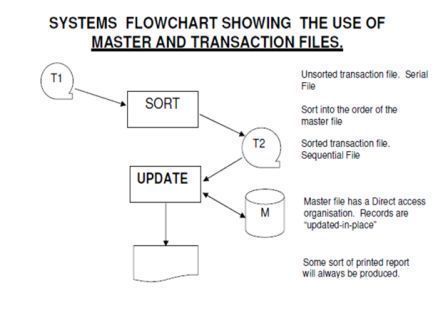
Permanent collection of data against which transactions are usually processed.
Will contain REFERENCE and DYNAMIC data. Reference data tends to be relatively permanent (occasional or infrequent changes are made: insertion of new records, deletions or alterations) and is processed by AMENDING. Dynamic data is data which changes frequently and is processed by UPDATING.
Usually have some order to the way records are stored: use the RECORD KEY.
For example a HOTEL FILE will contain both reference and dynamic data:
REFERENCE DATA. Items of data describing the rooms: type, size, number of beds, sea view…, which will rarely change.
DYNAMIC DATA. Items of data describing the guest: name, length of stay, special requirements…. Which will change frequently, perhaps every day.
TRANSACTION FILES:
Temporary collection of data used to change information on a master file.
Contains only that information which is needed to identify a record in the master file and make the necessary changes.
The records may not be in any order at all: either SERIAL or SEQUENTIAL ordering is normal.
Once used the transaction file may be deleted.
For example a company will hold a PAYROLL file. Each week information about employees will need to be processed. What data would the transaction file contain?
Employee number (to identify the employees record in the master file), weekly pay, days off sick, new employee, employee left the company…..
OPERATIONS ON FILES
SORTING- To sort a file is to put it into order. The order that is needed will usually be that of the key field (primary Key) – a field which contains a data item unique to that record. Sometimes another field is used to help in sorting out the records. For example, suppose a sports club wants to sort its file of members into alphabetical order of names. The surname field could be the primary key (the field used to sort out the file first) and then – because there might be people with the same surname – use the first name of the member as the secondary key, which would then put people with the same surname into alphabetical order of first name. Another way of describing this sort is to say that the file is sorted into first names within surnames.
It is better to have a field that is short (only a few characters long) or numeric, because sorting will be quicker.
MERGING- At times it may be necessary to join two files together. The two files are merged. For example, may be two sports clubs are joining to form a larger club. The two membership files will need to be merged in order to make a membership file that contains the details of the members from both clubs. But this can only happen if both the membership files have the same record structure: same field layout, same record key….
UPDATING- This is a term that describes keeping a file up-to-date. It is different to maintenance. Updating is done regularly to dynamic data in the record. Every time a product is passed over the scanner at the supermarket the stock file is updated. Every time you take a book from the library the book record is updated.
Often a master file is updated with a sorted transaction file. In this case the transaction file must be in the same order as the master file – key field order.
MAINTENANCE- This also means making sure that a file is up-to-date but this time the data being changed will be more static or permanent in nature. The price of a product in a stock file will change – but not every day or week. A student’s telephone number or address may need changing in the school student file. This is not a regular operation.
Maintenance will also include operations on an entire record: insertion and deletion. Adding a completely new record to the file (insertion) – a new student joins the school, a new product goes on sale at the supermarket. Removing an old record (deletion) – a student leaves the school, a product is not sold anymore.
Expert Systems
An expert system is a knowledge-based system which attempts to replace a human 'expert' in a particular field. The system will consist of
· a large database of knowledge
· facilities for searching the knowledge database
· a set of rules for making deductions from the data (inference engine)
Example
A medical diagnosis expert system (e.g. MYCIN) would have information about diseases and their symptoms, the drugs used in treatments etc.
A patient is asked by a doctor about symptoms and the replies are input to the expert system. The computer searches its database, uses its rules and makes suggestions about the disease and its treatments. Sometimes probabilities are assigned to diagnoses.
The computer does not take the place of the doctor but can be used to help the doctor make decisions.
Advantages.
The computer can store far more information than a human.
The computer does not 'forget' or make mistakes.
Data can be kept up-to-date.
The expert system is always available 24 hours a day and will never 'retire'.
The system can be used at a distance over a network.
Disadvantages
Well we don't want to do the experts out of jobs!
Lacks the 'human touch'!
Applications in the retail industry:- Case Study-Super Market
All goods in a supermarket have barcodes printed on them.
When a customer pays for the goods, each item's barcode is passed over a laser scanner built into the POS (Point-of-Sale) terminal. This reads the bar code and sends it to the main computer. The computer stores a database containing information about all the products the supermarket sells. The computer sends the price and the description of the item back to the POS terminal.
The price is added to the customer's bill.
The price and the description are displayed on a small monitor. They also get printed onto the customer's receipt.
The computer will also note that one of this item has been sold and will reduce the stock level on file. The computer always knows exactly how many of each item is in the supermarket. This is called automatic stock-taking.
At the end of each day, the computer sends out requests for more of those items which are running low.
The customer can pay the bill using EFTPOS (Electronic Fund Transfer at Point of Sale). A credit card (or debit card) is swiped through a card reader to read the customer's bank account details. These details and the amount of the bill are sent through the telephone system to the bank's computer system. The correct amount of money is transferred by the computer system from the customer's account to the supermarket's account.

Some supermarkets offer a loyalty scheme. Each customer has a Loyalty card which has a magnetic strip. The card is swiped each time the customer buys goods and 'points' are awarded. The customer can use these points for discounts or vouchers.
Medical and Hospital Systems
Computer system are used in several quite different ways within doctor's surgeries and hospitals..
Monitoring of Patients
When a patient is in hospital, they often require close
monitoring. It is not possible for a doctor or nurse to monitor patients
continuously, 24 hours a day, so computerized monitors are used instead.
Sensors are attached to the
patient. Sensors are used to monitor:
· Pulse rate (heart beats per minute)
· Temperature
· Breathing rate (breathes per minute)
· Blood oxygen levels
· Blood pressure
The sensors feed information back to a computer which processes the data:
· Data is checked for any problems (e.g. pulse rate too low/high)
· Data is logged so that it can be checked later
Several outputs from the computer system let hospital staff the patient's condition:
· A large display / monitor shows graphs of pulse, breathing, etc.
· A loud buzzer / alarm can be sounded if there is a problem to attract the attention of a nurse/doctor
· A small printer can produce a hard-copy of the data
The data from several patients can be fed back to a central nursing station so
that the nursing staff can see exactly what is happening in the ward.
Diagnosis of Illness- Body Scanners
CT scanners and MRI scanners allow doctors to investigate what is happening inside a patient's body without intrusive surgery.
The complex signals that come back from these huge machines are picked up by sensors and fed into a computer. The computer processes the data, then outputs full-colour images, sometimes in 3D, for the doctor, giving views of the patient's body.
Diagnosis of Illness- Expert Systems
Expert systems allow medical staff with limited medical knowledge (e.g. nurses) to get advice from a computer 'expert‘. They essentially work by:
· Medical staff inputs patient's symptoms (or answers questions about them)
· The expert system's search engine searches the knowledge base (a collection of medical knowledge) to find possible diagnoses
· The system outputs a list of possible diagnoses, and treatments
Managing Patient Records
Doctors and hospitals have to deal with thousands of patients every week. It is essential that the medical details of every patient are recorded accurately so that the correct diagnosis can be made, and the correct treatment can be given.
For this reason, hospitals make use of computerized
databases to store patient records. Computerized databases mean that-
· Patient data can be easily shared between doctors, pharmacies and other hospitals
· It is easy to search for and retrieve patient records
· Doctors can instruct a pharmacy to issue medication for a patient (no paper note needs to be written)
